How To Share Your Google My Business Review Link PLUS a hack for how to monitor where your review link clicks come from. ?
Are you a busy business owner that wants get tonnes of Google My Business reviews?
Want to ensure your the top business in local search?
This video will show you how to find and share your Google My Business Review form link to get more reviews!
How To Share Your Google My Business Review Link
Video Transcript:
Getting tons of Google reviews is really important for any business. In order to get as many reviews as you possibly can, you need to share your Google My Business review form in as many places as possible.
This includes your emails, your email signatures, maybe you might even want to send a postcard to people that have visited your business and say to them, visit this link to leave us a review.
One of the best ways you can get people to leave you as many reviews as possible is by sharing your Google review form link. So here’s exactly how to find your Google My Business review link and where to share it.
Log into your Google My Business profile.
If you’ve not already created this, make sure you go and create it.
Once you’ve logged in, on the main Home page, about halfway down, you’ll see this little button that says Share Review Form.
Click Share Review Form.
From here, you’ll be able to access your request review link. This link is what you want to share in your email signatures. You want to follow up with customers and previous clients and get them to leave you a Google review. Copy this link and that is basically how you share your Google review form. And when you’ve clicked that and you open it up in a new tab, it will look something like this.
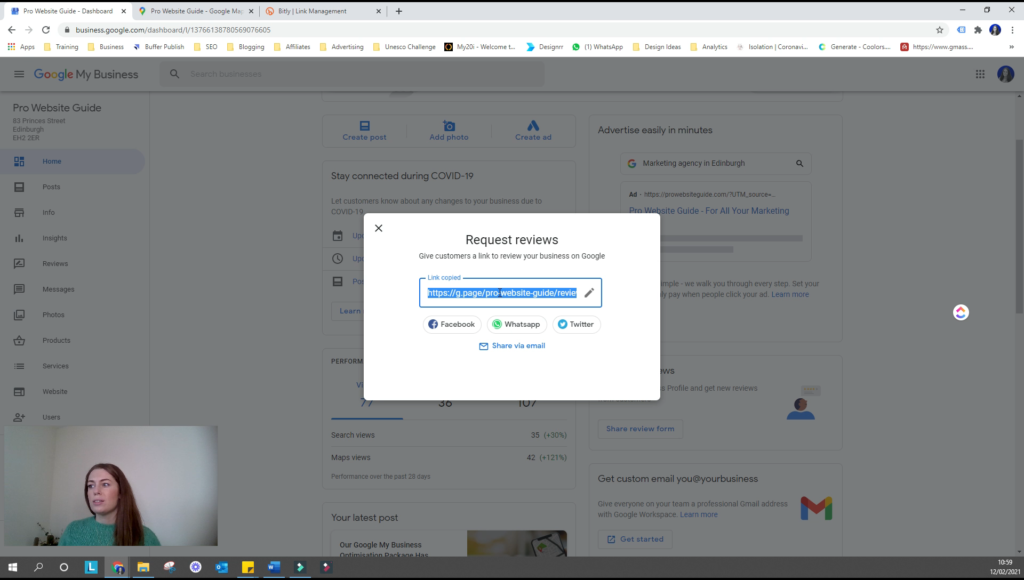
When you share the link with people, it will automatically open on this page.
They won’t need to go to your Google My Business profile and then say, leave review. There’ll be able to do it within a click. So once you’ve got that set up, I would then use that link that Google has given you.
Create a Short Link
And I would go to bitly.com. From there, you can create a short link that links through to your Google review form.
I’ve just created this Bitly link here and then that allows you to track where most of your clicks are coming from for that link. So I’m presuming it will mainly be via email when you follow up with people via email saying please leave me a review. People will click through that way, but if you also want to send a postcard out to clients and say thanks so much for your service, please leave a review, it’s super important to us. If they enter in that Bitly link directly, it will be a lot quicker than them trying to find that full Google page link.
You’ll be able to track those referrals in here and see where you’re getting the most clicks. If it’s from your postcard, you’re going to be able to see that, if it’s from email, you’re going to be able to see that as well. Make sure you’re tracking that in bit.ly.
It will also give you data by location as well. And then you can share it across all your social media channels, with customers and clients via email and you can also even manually share, send them a postcard and then they will have a really quick and simple link to enter instead of entering that big link.
Now you’ve got your Google My Business review form link, you should now know how to share your Google My Business review link.
Share it in as many places as possible and hit your goal of getting as many reviews as you possibly can.